
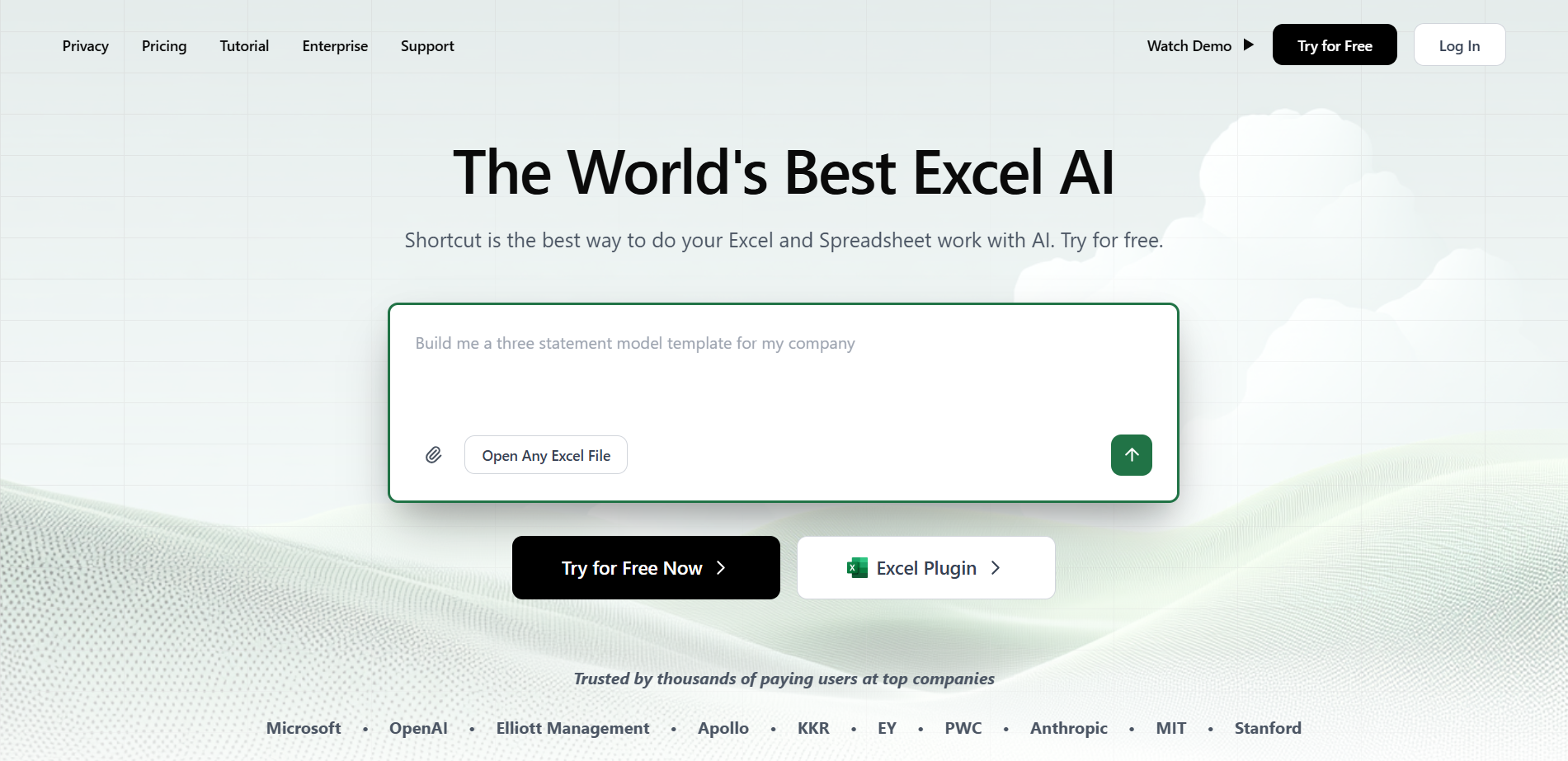
What Shortcut is
Shortcut is an AI Excel super agent that can quickly handle complex Excel tasks, such as Analyse data , generate charts, build financial models, etc. Shortcut excels in complex cases at the Excel World Championships with over 80% accuracy and 10 times faster than humans. Users only need to enter prompt words, Shortcut performs tasks quickly and supports drawing pixel art. Shortcut’s efficiency and intelligence make it ideal for handling Excel tasks, suitable for users who need to quickly organize and analyze data.

Shortcut’s main features
- Excel file operations : Can directly edit, import and export Excel files, and supports basic Excel operations.
- Complex tasking : Able to handle complex financial modeling tasks, such as building multi-label estimated cap tables (Pro Forma Cap Table).
- Data analysis and visualization : Supports analyzing large amounts of data (like 5000 lines of CSV data), generating charts and dashboards, providing in-depth insights.
- Custom AI rules : Users set personalized preferences and needs for Shortcut, rules will be saved and automatically applied to all future conversations and tasks for efficient and consistent Excel file processing.
- Creative drawing : Supports pixel art creation, such as drawing images such as Master Yoda or Mario.
- Interactive task execution : By entering prompt words, the user can perform tasks step by step and feedback the results.
- Compatibility : Highly compatible with Excel functions and can seamlessly connect with existing workflows.
How to use Shortcut
- Registration & Login : Visit Shortcut official website https://www.tryshortcut.ai/.
- Register account : Use Google Mail or other supported mailboxes to register an account and log in.
- Upload or New File :
- Upload file : Click the “Open Xlsx File” button in the upper left corner of the interface and select the Excel file that needs to be processed.
- New file : Or create a new Excel file directly on the interface and start a new task.
- Enter Prompt : Enter a clear task description in the chat area on the right.
- Interaction & Task Execution : Shortcut will ask for more details, such as where the data is stored, the type of chart, etc. After confirming the information, Shortcut embarks on a task and feeds back the results step by step.
- View results : once the task is complete, the results are displayed directly in the Excel table on the left. Save modified file, or export as new Excel file.
Shortcut’s product pricing
-
Pro : $40/month, unlimited messages and operations, use Max model 2 times a day, access basic model.
-
Max : $200/month, includes all features of the Pro, unlimited access to the Max model, unlimited operations and messages.
-
Teams :$500/month/seat, includes all Max features, enterprise-grade security, direct access to Shortcut Founders.
Shortcut application scenarios
- Data analysis and visualization : Quickly organize data and generate charts to help users intuitively understand complex data trends.
- Financial modelling : Construct accurate financial statements and models to ensure the accuracy and efficiency of financial analysis.
- Day-to-day office : Automatically generate attendance sheets, task lists, etc. to improve work efficiency.
- Education & Learning : Assist students and teachers to quickly generate learning materials and analysis reports to optimize the teaching process.
- Personal financial management : Manage personal income and expenditure, generate detailed budget and financial analysis reports, and assist in financial planning.